Search for "Home Assistant Raspberry Pi" and you get fifty tutorials that stop at the same place: flash the image, wait five minutes, open homeassistant.local:8123, done. The official documentation does this better than any of them.
What none of them cover is the six months after. Your Zigbee devices start dropping off one by one. The system reboots itself at 3 a.m. The database corrupts and takes your history with it. Every one of those has a hardware cause, and every one is decided by choices you make before you flash anything.
So this guide is mostly about those choices.
Which Raspberry Pi - the honest answer#
The official installation guide covers the Pi 4 and Pi 5, and asks for at least 2 GB of RAM and a 32 GB card with A2 certification. That is the baseline. Here is what it means in practice.
Raspberry Pi 3: no#
The Pi 3 is not in the installation guide, and its 1 GB of RAM sits below the documented 2 GB minimum. Home Assistant may well boot on one. But you are then running unsupported hardware below the stated minimum, and when something misbehaves you will not know whether you found a bug or ran out of memory. That is a miserable position to debug from.
If you have a Pi 3 in a drawer, it makes a fine Zigbee router, a second display, or an ESPHome flashing station. Not the brain of the house.
Raspberry Pi 4, 4 GB: the sensible default#
A typical home - a hundred-odd entities, a few dozen automations, ZigBee and a couple of integrations - runs on a 4 GB Pi 4 without drama. Home Assistant spends most of its life waiting on the network, not computing. The 2 GB model works too, though 4 GB gives you headroom for add-ons like Frigate or Zigbee2MQTT.
Raspberry Pi 5: buy it for the storage, not the CPU#
Is the Pi 5 overkill? On raw CPU, for most homes, yes. But that is the wrong reason to choose it.
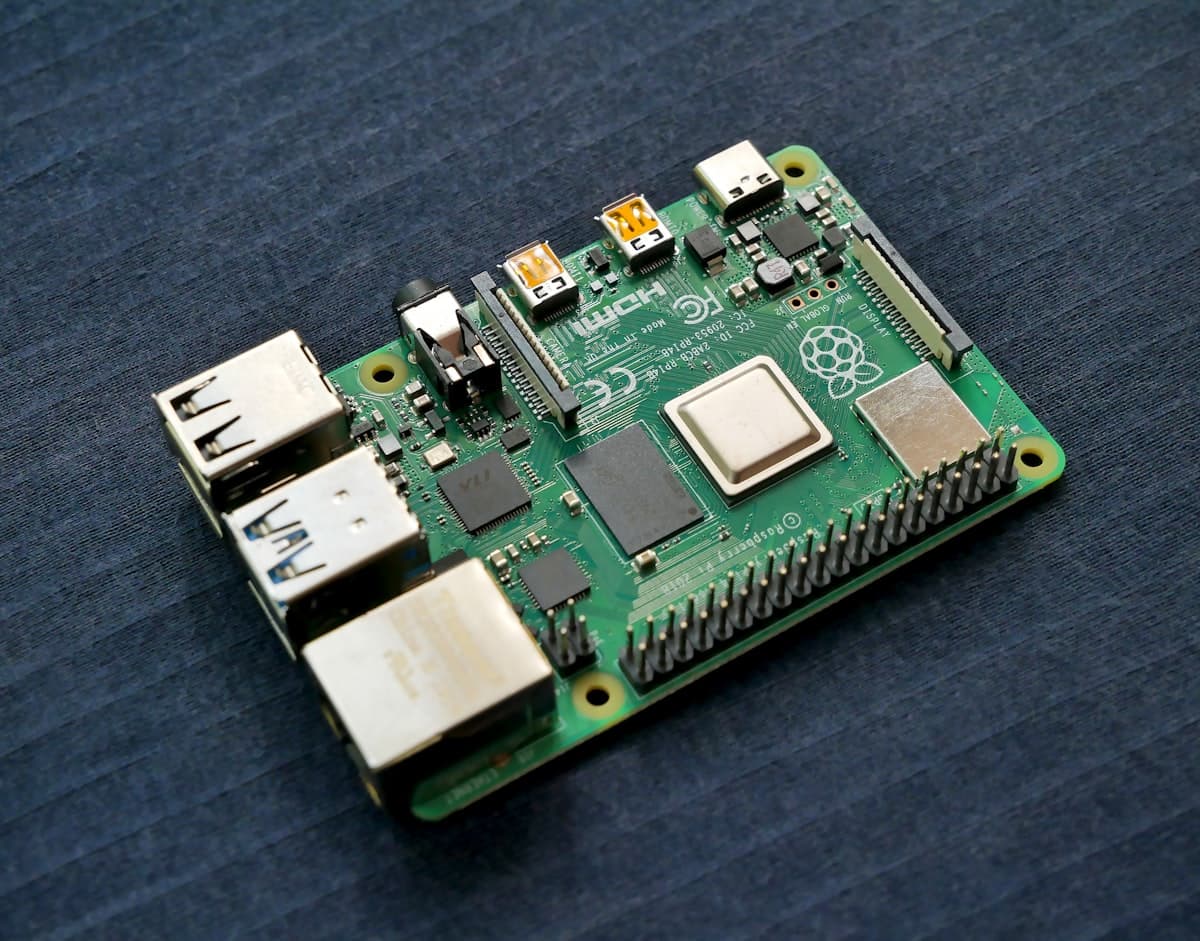
The Pi 5 exposes PCIe, which means an NVMe drive instead of an SD card. That single change removes the most common cause of dead Home Assistant installs, and we will get to why in a moment. If your budget stretches to a Pi 5 with an NVMe HAT, buy it for that, not for the benchmark numbers.
The Pi 5 has two documented power modes: 5 V at 5 A (25 W), or 5 V at 3 A (15 W) with a 600 mA peripheral limit. That second number is the trap. On a 15 W supply, everything plugged into USB shares 600 mA between them. An NVMe HAT plus a Zigbee dongle plus an external drive will exceed it, and the symptoms - random reboots, devices vanishing, storage dropping out - look exactly like software faults. Buy the 5 A supply.
The Pi 4 asks for 5 V at 3 A (15 W) and has no such peripheral limit.
Home Assistant Green: the option most guides skip#
Before you total up a Pi build, price the alternative. Home Assistant Green is the project's own hardware: 199 USD / 179 EUR, a quad-core Cortex-A55 at 1.8 GHz, 4 GB of RAM, and 32 GB of eMMC. It draws about 1.7 W idle and ships with a power supply and Ethernet cable in the box.
The specification that matters is eMMC. Storage is soldered on, so there is no SD card to corrupt - the failure mode that ends most Pi installs simply does not exist here.
Its CPU is slower than a Pi 5's, and it has two USB 2.0 ports and no PCIe, so you will not be adding an NVMe drive or running heavy add-ons.
Choose Green if you want Home Assistant to work and nothing else - no decisions about cards, cases or supplies, and nothing to maintain.
We compare the two in detail in Home Assistant Green vs Raspberry Pi, including why the sticker price is the wrong comparison.
Choose a Raspberry Pi if you want to run other things beside Home Assistant - Jellyfin, a Pi-hole, Docker containers, an experiment - or you specifically want NVMe storage. Once you add a decent card or NVMe drive, a proper supply and a case, a Pi 5 build lands near Green's price anyway. You are paying for flexibility, not savings.
Installation, briefly#
This part genuinely is easy, and the official docs cover it well.
Download Raspberry Pi Imager, then pick:
Other specific-purpose OS → Home assistants → Home Assistant → Home Assistant OS
Choose your model, flash, insert the card, connect Ethernet, power up. First boot takes several minutes - Home Assistant is unpacking and setting itself up, so leave it alone. Then open http://homeassistant.local:8123 and follow the onboarding wizard.
Use Ethernet for the initial setup even if the Pi will end up on Wi-Fi. If homeassistant.local does not resolve, your network is blocking mDNS - find the Pi's IP in your router's client list and use that instead. This is the single most common reason people think a flash "failed" when it worked fine.
That is the whole install. Now the part that decides whether it still works next summer.
Four hardware mistakes that kill Home Assistant installs#
1. The SD card, and why Home Assistant is unusually hard on it#
Home Assistant's recorder writes every state change to a database. Every motion sensor trip, every temperature reading, every light toggle. On a busy setup that is a continuous stream of small writes to a card designed for occasional photo storage.
The official recorder documentation is direct about the consequences and gives three mitigations: raise commit_interval (30 seconds instead of the default), exclude noisy entities from recording, or move the database off the card entirely. It also notes that starting a new database is "usually caused by failing flash storage, an inadequate power supply, an unclean shutdown, or another hardware failure" - flash storage named first.
What to actually do, in order of effectiveness:
- Move to NVMe or SSD. On a Pi 5 with a PCIe HAT this is the clean fix. It removes the problem instead of slowing it down.
- If you stay on a card, buy the A2 class the docs ask for, from a brand that has something to lose. Counterfeit cards are rampant, and a fake 128 GB card that is really 8 GB will corrupt within weeks.
- Exclude chatty entities from the recorder. Power meters reporting every second,
sensor.time, anything updating faster than you will ever look at it. - Keep free space. The recorder docs call for at least 2.5x the database size available, because maintenance operations need room to work.
2. USB 3.0 will break your Zigbee network#
This one catches almost everyone, and the symptom is maddening: Zigbee devices work at first, then the ones furthest from the coordinator start dropping, and it gets worse as you add devices.
USB 3.0 signalling emits interference right across the 2.4 GHz band - the band Zigbee and Thread use. The Pi 4 and Pi 5 both have USB 3.0 ports, and a Zigbee dongle plugged straight into one sits directly in that noise.
Home Assistant's own guidance is specific: put the adapter on a shielded USB extension cable, connect it to a USB 2.0 port rather than a 3.x one, and if the machine only has 3.x ports, use a powered USB 2.0 hub. 50 cm of cable is already enough to make the difference.
A two-dollar cable prevents a problem you would otherwise spend a weekend blaming on the mesh.
3. Underpowering, disguised as software bugs#
Reboots with nothing in the logs. Filesystem corruption after a clean shutdown. USB devices that disappear and come back. These read like software faults and are usually a power supply that cannot hold 5 V under load.
Home Assistant's install guide warns that "mobile chargers may not be suitable" and that computer USB ports will not supply enough. Phone chargers negotiate their full output with their own manufacturer's handsets and quietly deliver less to anything else. Buy the official supply for your model - 15 W for the Pi 4, the 5 A / 25 W one for the Pi 5.
4. No backups, until the day you need one#
Home Assistant has backups built in, and almost nobody enables the automatic ones until after they have lost a configuration. Settings → System → Backups, schedule them, and send them somewhere that is not the Pi - a network share, or off-site storage. A backup sitting on the card that just died is not a backup.
Adding a touchscreen#
A wall-mounted Pi with a touchscreen dashboard is a popular build, and worth knowing one thing before you order parts: run the display on a second Pi, not the one running Home Assistant.
The reason is failure isolation. A kiosk browser is a heavy, crash-prone thing to have running on the machine that controls your heating. Keep the server headless and let a cheap Pi 3 or Pi Zero 2 W drive the screen over the network. That is also a good use for the Pi 3 we ruled out earlier.
Point the display device's browser at your Home Assistant instance and use a dashboard in kiosk mode. If the screen locks up, you restart the screen, not your house.
Remote access, without opening your router#
Once Home Assistant runs your home, you will want it when you are not in it. Three practical options:
- Nabu Casa (6.50 USD or 7.50 EUR a month, 65 USD a year) - funds the project, works immediately, ties you to Home Assistant only.
- Tailscale or WireGuard - free and locked down, but everyone in the household needs a client app installed and configured.
- A reverse SSH tunnel - your Pi opens an outbound connection, so there is nothing to forward and nothing exposed on your router. Family clicks a normal HTTPS link.
That last one is what SmartHomeEntry does, and the outbound part matters more than it sounds: if your ISP puts you behind CG-NAT - universal on mobile internet, common on fibre - port forwarding cannot work at all, no matter how you configure the router. We covered why in the remote access guide.
curl -fsSL https://get.smarthomeentry.com | bash -s -- YOUR_TOKEN
It is also not tied to Home Assistant the way Nabu Casa is: Jellyfin, Grafana or a NAS can go through it too. Each one is a separate tunnel on its own subdomain, and your plan sets how many you get - one on the Home plan.
What to buy, summarised#
Least hassle: Home Assistant Green. 199 USD, nothing to choose, eMMC storage, done.
Best value with room to grow: Raspberry Pi 4 4 GB, official 15 W supply, genuine A2 card from a real brand, plus a shielded USB extension for the Zigbee dongle.
If storage reliability is what you care about: Raspberry Pi 5, NVMe HAT and drive, and the 5 A / 25 W supply - not the 15 W one, or your peripherals share 600 mA.
What not to buy: a Pi 3 as your main server, an unbranded SD card, or a phone charger.
The hardware decisions take an afternoon. The consequences last for years, and every one of the four failure modes above is cheaper to prevent than to diagnose.