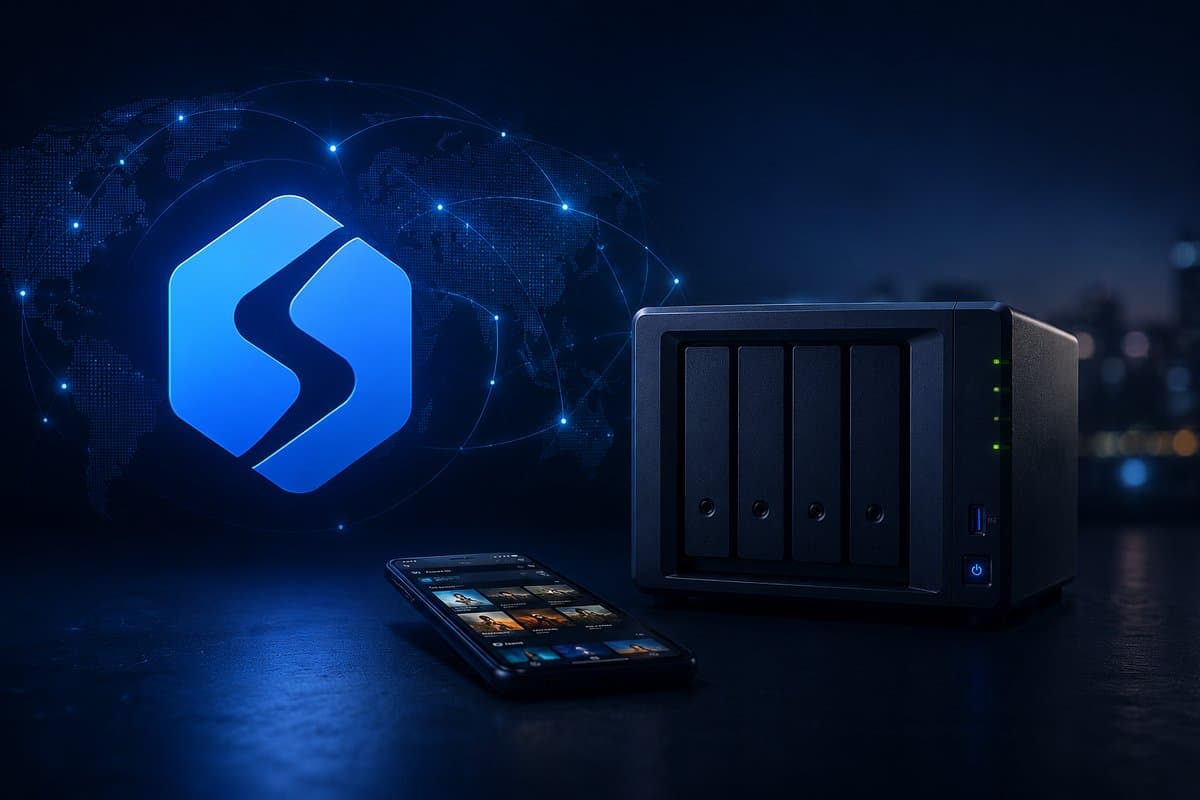
Friday, 9:30 PM. You get home from work, your wife asks if you can show your mother-in-law the photos from your weekend in the Lake District. You open the DS file app on your phone, tap "login", and instead of the normal screen - there's a message: "This account has been temporarily disabled due to too many failed login attempts. 47 attempts in last hour". You tap into the log. IP from Vietnam. IP from Russia. Three IPs from Brazil. One from Iran. All trying admin / admin, admin / synology, admin / 12345678. Your wife asks: "what does that mean?". And you tell her the truth: someone has been systematically trying to get into your wedding photos, renovation invoices, scans of the kids' passports, for hours. Because a NAS isn't a Home Assistant. A NAS contains your entire digital life, and Synology gave you QuickConnect and thinks the problem is solved. Not solved.
Why Synology is a different case than Home Assistant#
Home Assistant contains a YAML config, a few tokens, a list of ZigBee devices. If someone breaks in - they'll turn off the living room light, worst case open a Yale lock. Annoying, but recoverable. A NAS is a different category.
Your DS920+ or DS224+ contains: 200 GB of photos from 8 years of life (wedding, births, holidays), backups of family laptops via Synology Drive, invoices and document scans (Document Station), tax returns, passport scans for travel, sometimes passwords in Notes Station, sometimes a copy of a LastPass database "I downloaded for a moment". If someone encrypts that - a $250 ransom for recovered wedding photos sounds cheap. Some people pay.
That's why DSM/QTS are the favorite target of ransomware. Not HA, not Pi-hole, not Plex. NAS boxes. Specifically:
- eCh0raix (2019) - 7,300 Synology NAS boxes encrypted in the first wave. Vector: brute force on
adminvia QuickConnect. - DeadBolt (2022) - 8,000 QNAPs encrypted in one weekend, ransom 0.03 BTC per box (~$1,200 at the time). Vector: CVE in Photo Station exposed on a public IP.
- Synolocker (2014) - first big one, even before the BTC boom. DSM 4.x without a patch and an open port was enough.
Synology QuickConnect exists, but it's a relay through Synology servers in Taiwan and Germany. Your traffic - photos, documents, DSM login - passes through Synology Inc. infrastructure. Synology claims they don't log content, only metadata. You trust them on their word? Plus: QuickConnect throughput is throttled - 3-5 MB/s at peak, even if you have a 500/500 fiber line. That's not a mistake, it's by design.
DSM admin panel isn't a regular HA login either. DSM gives the attacker:
- SSH with root (if enabled, and it often is because "I used it once for rsync")
- Terminal in the browser (Synology Diagnose Tool)
- rsync, scp, full filesystem access
- Hyper Backup config - can wipe your offsite backups
- Snapshot Replication - can delete BTRFS snapshots, so even ransomware-recovery via snapshot won't work
- Apps marketplace - installation of "third-party packages" as root, no sandbox
And if you've got Synology Photos indexed on a public account and happen to have left everyone read on a shared folder - your wedding photos are already in someone else's dataset for face recognition training. It happens. Daily.
5 methods of remote access to Synology - ranking from worst to best#
1. Port forwarding 5000/5001#
How it works: you open ports 5000 (HTTP) and 5001 (HTTPS) on the router, point them at the Synology IP on the LAN. You configure DDNS via synology.me (free, built into DSM), generate a Let's Encrypt cert in Control Panel → Security → Certificate, and that's it - https://myNAS.synology.me:5001 from anywhere in the world.
Pros: zero external dependencies, lowest latency, full throughput of your upload.
Cons - and this is a long list:
- You expose the DSM admin panel to the public internet. Shodan bots will find it 4-6 hours after you open the port, and they try
admin / adminon loop. - Without Auto Block you'll get thousands of attempts daily. With Auto Block (5 attempts, 30 min ban) - you'll still see hundreds of different IPs rotating through a botnet.
- CVE-2024-10441 (Photo Station, RCE without auth, CVSS 9.8) - if you didn't patch within 2 weeks of release, you've handed root to anyone on Shodan.
- Doesn't work behind CGNAT (Mint mobile, T-Mobile mobile, a chunk of Comcast cable, large parts of UK Virgin Media). If your router shows a WAN IP starting with
100.64.x.x- port forwarding physically won't work. - DSM hangs under attack - I've seen boxes where 200 attempts/sec OOM-killed the auth daemon and the NAS stopped responding to legit users.
Verdict: bad for 99% of people. Let me say it clearly: if you have a NAS on a public IP and you're not auditing auth.log daily, it's not a question of if, but when. Exposing DSM via port forwarding in 2026 is like leaving the keys in the ignition in a Manhattan parking lot.
2. Synology QuickConnect#
How it works: you enable QuickConnect in Control Panel → External Access → QuickConnect, give it your Synology account email, get myNAS.quickconnect.to. Synology handles the routing through their relays. Zero router configuration.
Pros: true "zero-config", works behind CGNAT (it's an outbound tunnel from your NAS), free, built into DSM.
Cons that Synology marketing doesn't mention:
- Your traffic passes through Synology servers in Taiwan and Frankfurt. All of it. Every photo, every login, every PDF. Synology claims the tunnel is end-to-end TLS, but they decide when and whether.
- Throughput throttled to 3-5 MB/s at peak. Uploading 50 GB of vacation photos to the NAS via QC? Leave it overnight. Through an SSH tunnel that same transfer runs at 30-50 MB/s on a typical 500/500 fiber.
- DSM admin panel still exposed - QuickConnect doesn't reduce attack surface, it just adds a middle layer. If someone gets your QC-ID and password - they're in.
- Single-vendor dependency. Synology will eventually disable QuickConnect for your model (DS214play already has deprecated QC in some functions). EOL = no access.
- Synology knows your QC-ID and can be compelled to share traffic via subpoena (Taiwan, but also European subsidiaries).
Verdict: convenient for grandma. Weak for anyone who actually uses the NAS for more than occasional Photos browsing. Throughput kills Synology Drive sync, backups, editing files in Office.
3. Cloudflare Tunnel (cloudflared)#
How it works: you install the cloudflared package via Container Manager or on Synology via SPK from CommunityPackageHub. You authorize the tunnel, in the CF panel you map nas.yourdomain.com → http://192.168.1.50:5000. HTTPS auto via the CF CDN.
Pros: free, works behind CGNAT, your own domain, DDoS shield built in, decent throughput for small files.
Cons:
- ToS Section 2.8 - Cloudflare prohibits using free tunnels for "caching or serving disproportionate amounts of non-HTML content". Synology Drive sync, Photos backup, Hyper Backup to offsite - that's exactly what the ToS flags as problematic. Subdomain bans are random but real.
- 100 MB per HTTP request limit on the free plan. Synology Drive trying to upload a 4GB video file?
413 Payload Too Large. If you've got a Photos library with RAWs from a Sony A7 (80 MB each) - works up to the limit. - WAF blocks legit Photos requests (long-running uploads, range requests, WebDAV). Debugging the CF log: lottery.
- Double TLS overhead - your DSM cert + CF edge cert. Latency on every request +50-100 ms vs native SSH tunnel.
Verdict: OK just for accessing the DSM panel. Weak for the main NAS use case - bulk transfers. This is a tunnel designed for hosting websites, not for storage. Wider comparison.
4. WireGuard / Tailscale#
How it works: you set up WG on a router (UniFi, MikroTik, OpenWRT) or a container on the Synology via Container Manager. Or Tailscale as an SPK package (official since 2023 for DSM 7.2+). Every device in the family has the app, connects as if it were home, NAS on the LAN (http://192.168.1.50:5000).
Pros: strong encryption, zero DSM exposure, access to the entire LAN (printer, HA, cameras), Tailscale works behind CGNAT via DERP relays.
Cons:
- An app on every device. Your mother-in-law is going to launch Tailscale before she watches grandkid baptism photos? Good luck.
- Synology Photos web access requires an open browser - through the VPN you have to remember to fire up the tunnel first. Connection lost on network change (LTE → WiFi) = re-login in Photos.
- Smart TVs and Chromecast don't have Tailscale/WG. Casting Photos to the TV in a hotel = won't work.
- Tailscale free tier has a 100-device limit, but the more important limit - Tailscale sees your connection metadata via the coordinator. Solo dev survives that, family + guests less so.
- WireGuard behind CGNAT on the Synology side - won't work. You need a VPS with a public IP as the WG hub and
Endpointpointing at the VPS. Which means you're paying for hosting anyway.
Verdict: good for solo, weak for family and Photos web. If you use the NAS alone, have a public IP, know CLI - Tailscale is great. If the family's supposed to use it - forget it.
5. Reverse SSH tunnel (SmartHomeEntry)#
How it works: an agent in a container on Synology (Container Manager) opens an outbound SSH tunnel to a relay server. The relay exposes DSM on a stable HTTPS subdomain, e.g. mynas.smarthomeentry.com. Zero ports on your end, zero relay through Taiwan.
Pros:
- Stable HTTPS subdomain with Let's Encrypt at the relay - zero certificates to renew on the DSM.
- Full throughput of your upload - the relay only forwards TCP, doesn't decrypt, doesn't throttle. 50 MB/s on a 500 Mbps upload.
- No ToS issues for file transfers, no throttling like QuickConnect.
- Works behind CGNAT - outbound tunnel from the NAS side.
- Zero exposure of the DSM admin panel - the relay only sees TCP, not the DSM auth daemon. Shodan bots won't find you because your NAS doesn't have an open port.
- Family opens a link in the browser - no VPN app, no configuring your mother-in-law's device.
Cons:
- Dependency on relay uptime (managed, but external service).
- Paid - from $9/month for the hobby plan. QuickConnect and Tailscale are free.
- Latency +1 hop vs port forwarding (typically 5-15 ms on EU routes, unnoticeable for the DSM web UI).
Verdict: for most Synology users - best privacy/convenience/throughput ratio. If you want full control and don't want Synology to see your traffic - this is the way.
| Method | Behind CGNAT | HTTPS | Throughput | DSM exposure | Family setup |
|---|---|---|---|---|---|
| Port forwarding | no | manual | full | maximum | won't manage |
| QuickConnect | yes | auto | 3-5 MB/s | high | easy |
| Cloudflare Tunnel | yes | auto | medium | medium | medium |
| WireGuard / Tailscale | partially | n/a | full | none | hard |
| Reverse SSH (SHE) | yes | auto | full | none | easy |
Setup Synology + SSH tunnel in 60 seconds#
Here's the catch other tutorials skip: DSM 7.2 doesn't allow native SSH outbound from DSM itself. Synology blocked this in 7.0 for security reasons (rightly so). That's why the agent has to run in Container Manager (Docker for Synology). Which is good, because it's isolated from the rest of the NAS - the agent only has access to what we give it.
Container Manager is available on DSM 7.2+ on Plus series models (DS220+, DS920+, DS923+, DS1522+, DS1821+ and up) and DSx20+ Value (DS220j has containers via Docker beta). J-series models (DS118, DS220j) and some older ones (DS115j) don't have Container Manager - for them you have to use an alternative (manual SSH install or a dedicated Pi next to the NAS).
Step by step (DSM 7.2+)#
-
Install Container Manager from Package Center (if you don't have it yet).
-
Create a folder for the agent config in Control Panel → Shared Folder →
docker/smarthomeentry/. Snapshots on, retention 7 days (for safety). -
SmartHomeEntry Dashboard → Create Tunnel → choose subdomain (
mynas.smarthomeentry.com) → copy install token (TTL 15 min). -
Container Manager → Project → Create, path
/docker/smarthomeentry/, pastecompose.yaml:version: "3.8" services: she-agent: image: smarthomeentry/smarthomeentry-agent:latest container_name: she-agent restart: always network_mode: host environment: - INSTALL_TOKEN=ey...paste...token - TARGET_HOST=192.168.1.50 # Your NAS IP on LAN - TARGET_PORT=5000 # DSM HTTP -
Build → Start. The agent pulls the SSH key via the install token, sets up the tunnel to the relay. In the SHE dashboard the tunnel status flips to
activein 10-15 seconds. -
Test: open
https://mynas.smarthomeentry.comin your browser. You should see the DSM login screen over HTTPS, with a green Let's Encrypt cert, no warning. Working.
DSM 6.x and J-series - workaround#
If you have DSM 6.2 (DS216+, DS415+) or models without Container Manager, there are two routes:
- A dedicated Raspberry Pi on the network that runs the tunnel and forwards to
http://192.168.1.50:5000. Pi 4 withapt installof the SHE agent - one-time cost ~$60, zero changes on the NAS. - Manual SSH: enable SSH in Control Panel → Terminal & SNMP, add the SHE public key to the admin's
~/.ssh/authorized_keys, set up cron that runsssh -Rwith an autossh wrapper. Advanced, easy to break, not recommended for non-developers.
After setting up the tunnel, do NOT leave DSM still open on port forwarding! Disable ports 5000/5001 on the router and in DSM Control Panel → External Access → disable QuickConnect. Otherwise you have both channels open, and the SSH tunnel only makes sense as the sole entry channel. Check whatismyip.com → port scan on 5000 and 5001 - should be closed/filtered.
What you MUST do after setup - security checklist#
Tunnel works, DSM accessible at mynas.smarthomeentry.com, you can show your wife the Lake District photos. Now 10 minutes of hygiene so you don't come back to this in panic in six months.
-
Disable the default
adminaccount. Control Panel → User & Group → selectadmin→ Edit → check "Disable this account". Create a separate user with admin rights (gmuk_admininstead ofadmin). 80% of brute force attacks targetadmin/admin- if there's noadmin, the attack has no target. -
Enable 2FA for all admin accounts. Control Panel → Security → Account → 2-Factor Authentication. Use Authy or Google Authenticator (TOTP), not SMS (SIM swap is a real attack now). Force 2FA for all users in the administrators group.
-
DSM Auto Block. Control Panel → Security → Auto Block: 5 failed attempts in 30 min → ban IP for 30 min. Plus "Enable Block Expiration" off - let bans stick. Plus DoS Protection in the same section → On.
-
Update DSM to the latest version. Minimum DSM 7.2.2-72806 Update 4 (March 2026 release, fix for CVE-2026-1188 in File Station - RCE with auth, CVSS 8.4). Enable "Auto Update DSM" → Important and critical updates. Yes, an automatic update can break a third-party package. Yes, it's worth it.
-
Disable SSH and Telnet unless you actually need them. Control Panel → Terminal & SNMP → uncheck "Enable SSH service" and "Enable Telnet". 99% of Synology users never use SSH - and an open SSH on port 22 is a brute force vector. If you need it for rsync - leave it, but change the port to something > 10000 and enable key-only auth.
-
Snapshot Replication (Package Center → Snapshot Replication) on BTRFS volumes. Schedule: hourly for
/home,/photo,/docs. Retention: 24h hourly + 14d daily + 4w weekly. Snapshots are read-only - ransomware can't encrypt them. Double-check that you have BTRFS, not ext4 (Storage Manager → Volume → File System). -
Test snapshot restore once a month. Pick a random file, delete it, restore from snapshot, verify the hash matches. A backup you haven't tested = no backup. I've seen people who for 3 years had "Snapshot Replication enabled" and when recovery time came, it turned out the volume wasn't BTRFS and the snapshots had never existed.
Enable Hyper Backup with encryption to a second destination - cloud (Backblaze B2 ~$1.50/month per 1 TB) or a second NAS at your brother's place. Keep the encryption key OFFLINE (paper in a safe + 1Password). If your house burns down, if Synology dies, if ransomware encrypts everything - you have an offsite encrypted backup. That's the only thing that actually saves you from total loss. Snapshot Replication on the same NAS is for "I deleted by accident" recovery - it doesn't protect against fire or ransomware that wipes snapshots too (advanced variants do that).
FAQ#
| Question | Answer |
|---|---|
| Does Synology Photos web work through the tunnel? | Yes. You open https://mynas.smarthomeentry.com/photo/ and see the full Photos UI, AI face recognition, tagging, album sharing. Mobile app (DS photo / Synology Photos) - in settings enter the subdomain as the server instead of myNAS.quickconnect.to. |
| Does Synology Drive sync client work? | Yes, the desktop client (Windows/Mac/Linux) and mobile connects to the subdomain. Sync runs at full upload throughput, no QC throttling. First sync of 200 GB photos: 1.5h instead of 18h via QuickConnect. |
| Surveillance Station / cameras through the tunnel? | Surveillance Station web UI - yes, you open it in the subdomain browser. RTSP livestream to DS cam mobile requires separate config - RTSP is UDP, the SSH tunnel forwards TCP. Workaround: in Surveillance Station enable "Stream over HTTPS" (transcode to HLS on the NAS side), then it works through the tunnel. Latency +2-3 seconds vs RTSP direct. |
| Hyper Backup / Snapshot Replication offsite? | NOT through the tunnel. Offsite backup to a second NAS at your brother's = direct WireGuard NAS-to-NAS, without the SHE tunnel. The tunnel is for user-to-NAS access, not NAS-to-NAS. Backup is a different use case - you want direct end-to-end encryption, no middle layer. |
| I have QNAP instead of Synology - works the same? | Yes, the procedure is 1:1. Container Station instead of Container Manager, same compose.yaml, same subdomain. QNAP has analogous CVEs (DeadBolt 2022), Quick Setup instead of QuickConnect, but the security conclusions are identical. |
| What about Active Backup for Business? | Works locally (backup over LAN), recovery via the subdomain web UI. The tunnel doesn't change that - ABB operates on repositories kept on the NAS, so access to the interface is enough. |
| Can I tunnel other services from the same machine? | Yes. One SHE agent handles multiple subdomains - mynas.smarthomeentry.com → DSM, photos.smarthomeentry.com → Synology Photos directly (port 7000), drive.smarthomeentry.com → Synology Drive Server. |
Verdict - when SmartHomeEntry, when QuickConnect#
I'll tell you straight up - no marketing. If you use the Synology once a month to show your mother-in-law a few photos, you back up the laptop once a week at night, you don't care about speed and it doesn't bother you that your traffic goes through Taiwan - QuickConnect will do. It's free, it works, zero setup. That's that.
If you back up your computer there daily via Synology Drive (Active Backup for Business), you have Surveillance Station with 4 cameras, you use Photos as the main family gallery with 200 GB of RAWs, you edit documents in Office Suite remotely, you have Synology Drive sync on 5 devices (laptop, phone, wife's tablet, kid's computer, work one), or you just don't want Synology Inc. seeing what you transfer - then a reverse SSH tunnel gives you full control and full throughput. 50 MB/s instead of 5. Your domain instead of quickconnect.to. Your data goes directly to your relay, not through Taiwan.
And one more thing - if your Synology sits in the living room under the cabinet and you have cable internet from a CGNAT-using ISP (T-Mobile Home Internet, large parts of Comcast residential), then QuickConnect and SHE are the only options at all. Port forwarding won't work, WireGuard won't either. Then the choice comes down to: Taiwan or your control.
See how SmartHomeEntry works with Synology →
Related reading: Home Assistant remote access, Nextcloud remote access, Jellyfin remote access, Cloudflare Tunnel - alternative. For installers: 50 clients without trips.